2026-08-27 · StackFill
Overprint vs Knockout CMYK: Print Shop Field Guide
Overprint vs knockout CMYK errors hide in screen proofs and cause costly reprints. Learn what each setting does, the six biggest mistakes, and a preflight checklist.
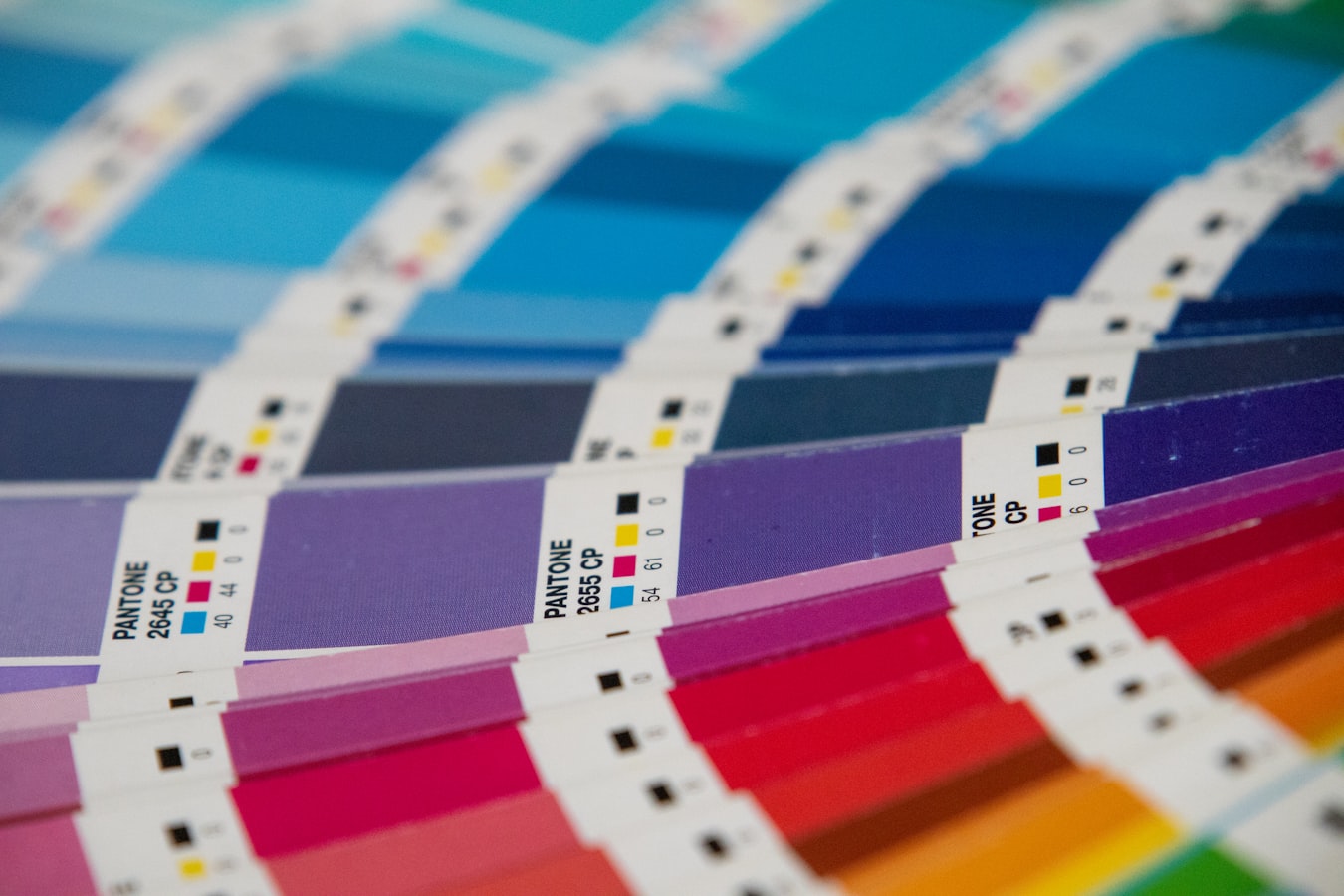
Overprint vs Knockout CMYK: A Print Shop's Field Guide
You open a customer PDF. It looks fine on screen. The proof looks fine. Then the job comes off the press and a headline that should be crisp black has gone muddy, or a spot color has vanished into the background, or white text has filled in with whatever color sat under it. Nine times out of ten, the culprit is overprint or knockout set the wrong way.
Overprint vs knockout CMYK is one of those settings that lives quietly inside a file until it costs you a reprint. It rarely shows up in a casual screen check. It only shows its teeth on paper. If you accept customer-supplied PDFs, you need a reliable way to spot these problems before ink hits stock.
This is a working reference, not a design lecture. Here is what these settings do, why they hide, the six mistakes that cause the most damage, and a preflight checklist you can run on every incoming file.
What Overprint and Knockout Actually Mean on Press
Every colored object in a print file sits on top of something. The question is what happens to the ink underneath.
Knockout is the default. When an object knocks out, the shapes below it are removed where they overlap. Nothing prints under it. If you put a solid cyan box on top of a magenta background, the press leaves a cyan-shaped hole in the magenta and drops cyan into it. One layer of ink in that spot, not two. This is what you want almost all the time.
Overprint does the opposite. An overprinting object prints on top of whatever is below it without knocking it out. Both inks lay down in the same spot and mix. Overprint cyan on top of magenta and you get blue where they overlap, because both plates carry ink there.
There are legitimate reasons to overprint. The classic one is small black text. Black type set to overprint sits on top of the background color, so if the paper shifts a hair during the run, you do not get a white gap showing through around the letters. The black just covers. This is called a trap, and it is standard practice for fine black text.
The problem is when overprint is applied where it should not be, or knockout is applied where a trap was needed. Get it wrong and the same file that looked perfect becomes a mess of missing objects, color shifts, and registration gaps.
Understanding CMYK behavior underneath all this helps. If you want the deeper foundation on how these four inks actually build color on stock, our piece on why CMYK is not a color mode walks through it. Overprint and knockout are decisions about how those four plates interact where objects meet.
Why Overprint vs Knockout CMYK Errors Are So Easy to Miss in Screen Proofs
Here is the trap that catches most shops. Many PDF viewers ignore overprint by default. They render every object as a knockout, showing you clean, separated color even when the file is set to overprint. So the file on your monitor looks correct while the file on the RIP does something else entirely.
Adobe Acrobat has an Overprint Preview mode, and it is off by default in a lot of setups. Preview and browser-based viewers usually do not simulate overprint at all. That means the proof you email the customer, the proof they approve, and the render you eyeball at your desk can all show something the press will not produce.
This is why overprint problems slip through. The error is invisible in the exact place most people look for errors. You are not being careless. The tool is lying to you unless you tell it not to.
The fix at the proofing stage is to always view files with overprint simulation turned on. A live proofing tool with real overprint rendering matters here, because a proof that skips overprint is not a press-safe proof. It is a pretty picture. If the proof and the plate disagree, the proof is worthless.
The Six Most Dangerous Overprint and Knockout Mistakes in Customer-Supplied PDFs
These are the ones that cause reprints. Learn to recognize each.
1. White set to overprint. This is the worst offender. White is the absence of ink on most stock. If a white object is set to overprint, it has nothing to lay down and nothing to knock out, so it disappears completely. Your white logo on a dark background prints as a hole showing the dark color. Customers do this constantly, usually by accident when they change a fill color without resetting overprint. Rule: white should almost never overprint.
2. Rich black text or panels set to knockout when they should trap. Fine black text that knocks out can show a white halo if registration drifts even slightly. Thin serifs and small point sizes are most at risk. Small black text usually wants to overprint. Large black panels are a different case and often want knockout with a proper trap built in.
3. Spot colors with the wrong overprint state. Spot colors are especially dangerous because their interaction with the CMYK below them is easy to get wrong. A spot varnish or a Pantone element set to overprint when it should knock out can muddy or shift the color underneath. Preserving spot behavior end to end is its own discipline, covered in our guide to spot color preservation in web-to-print.
4. Overprint left on after a color change. A designer sets an object to overprint for a reason, then later recolors it or repurposes it, and the overprint flag stays. Now a bright object that should knock out is mixing with everything under it. This produces color shifts nobody intended.
5. Placed images or objects with embedded overprint attributes. A logo dropped in from another file can carry its own overprint settings. The shop opens the parent PDF, sees nothing wrong at the top level, and misses that a placed element is overprinting inside.
6. Zero-percent tints treated as overprint. An object built at 0% of a channel can behave like white and drop out where you expected coverage. This overlaps with the white problem but hides better because the object looks colored in the file.
Every one of these can pass a casual look and fail on press. That is what makes them expensive.
Preflight Checklist: Catching Overprint and Knockout Problems Before the Job Runs
Run this on every customer-supplied file before you plate. It takes minutes and saves reprints.
- Turn on overprint preview first. In Acrobat, enable Overprint Preview before you look at anything. If your viewer cannot simulate overprint, it is not fit for prepress checking.
- Toggle overprint on and off and compare. Flip the preview and watch what changes. Any object that shifts, disappears, or mixes color when you switch is set to overprint. Now decide if that is correct.
- Check every white and light object. Confirm no white or near-white element is set to overprint. This single check catches the disappearing-logo disaster.
- Inspect black text behavior. Confirm small black text overprints and large black areas are handled deliberately. Look for white halos in the knockout preview.
- Separate the file and view one plate at a time. Acrobat's Output Preview lets you turn plates off individually. This shows you exactly what each ink does and reveals objects that vanish or double up.
- Verify spot color plates. Check that spot colors sit on their own plate and interact with CMYK the way you expect. Confirm the count of separations matches the job spec.
- Watch for zero-percent objects. Any object built at 0% coverage that should show color is a red flag.
Overprint and knockout are one layer of a full preflight. They live alongside bleed, trim, resolution, and font issues. Our rundown of preflight errors that cause reprints covers the rest, and the bleed and trim setup reference handles the geometry side. Font problems ride along too, so keep PDF font embedding on the same pass. Run all of them together so a file passes or fails once, cleanly.
A file built to PDF/X-1a gives you a firmer baseline, but note that X-1a compliance does not by itself guarantee correct overprint intent. It flattens transparency and enforces CMYK, yet an object set to overprint stays set to overprint. You still have to check.
How Personalization Workflows Can Introduce New Overprint Surprises
Here is where it gets sharper for any shop offering customer personalization. Most web-to-print platforms make you rebuild the customer's design inside their editor before anyone can change a name or a phone number. That rebuild is where overprint and knockout settings get scrambled. The original file may have had every trap set correctly. The recreated version does not carry those settings over cleanly, because it is a new file assembled by a different engine. You inherit fresh rendering surprises on a job that was fine before someone touched it. The cost of that rebuild is real, and we broke it down in the recreation tax.
Even simple variable data can go sideways. Swap a text string and the new text may pick up default overprint behavior instead of the original object's setting. Now the customer's edited card has a black overprint problem the approved proof never showed.
This is exactly the gap StackFill is built to close. It ingests your finished print PDF into a structured scene graph and preserves the file's overprint and knockout state end to end. You mark which elements customers may edit and lock the rest. When a customer personalizes against a live proof and downloads a byte-identical, press-ready CMYK PDF, the traps and overprint flags you already set are still there. Nobody rebuilds the design, so nobody reintroduces the exact errors this article is about. If you want the mechanics, how it works lays out the ingest-and-lock flow, and the approach to variable data printing from a finished PDF shows how edits stay inside the original render.
The point is not that personalization is risky. It is that recreation is risky. Personalizing the file you already checked keeps the overprint state you already verified.
Fix It Once, Lock It Down: Preventing the Same Error on Every Reorder
The worst version of an overprint vs knockout CMYK problem is the one you fix, forget, and re-fix. A customer sends a file with white text set to overprint. You catch it, correct it, run the job. Three months later they reorder, send the same original file, and the same error walks back in. If your process depends on someone remembering to re-check, someone will eventually forget.
The durable fix is to correct the file once and make the corrected, verified version the source of every future order. When overprint and knockout are set right in the master file, and that master is what customers personalize against, the settings cannot regress on a reorder. There is no re-editing step where the error can creep back. Our print shop reorder workflow and the notes on print template version control go deeper on making the good version the only version.
For shops running collateral across many locations or clients, this compounds. A franchise ordering the same postcard across fifty markets should not risk a fresh overprint mistake in market thirty-seven. Lock the verified file down once and every location personalizes from the same clean base. That is the logic behind brand template lockdown for franchise locations and the agency template portal approach for managing many clients at once.
Overprint vs knockout CMYK is not complicated once you know what to look for. It is dangerous only because it hides in screen proofs and slips through casual checks. Turn on overprint preview, run the checklist on every incoming file, and make sure your personalization process preserves the settings instead of rebuilding them from scratch. Do that and the error that used to cost you reprints becomes a two-minute check you pass every time.