2026-08-23 · StackFill
PDF Font Embedding for Print: Fix It Before Press
PDF font embedding for print failures cause silent reprints. Learn how to audit, fix, and prevent missing or partial font embedding before files hit the RIP.
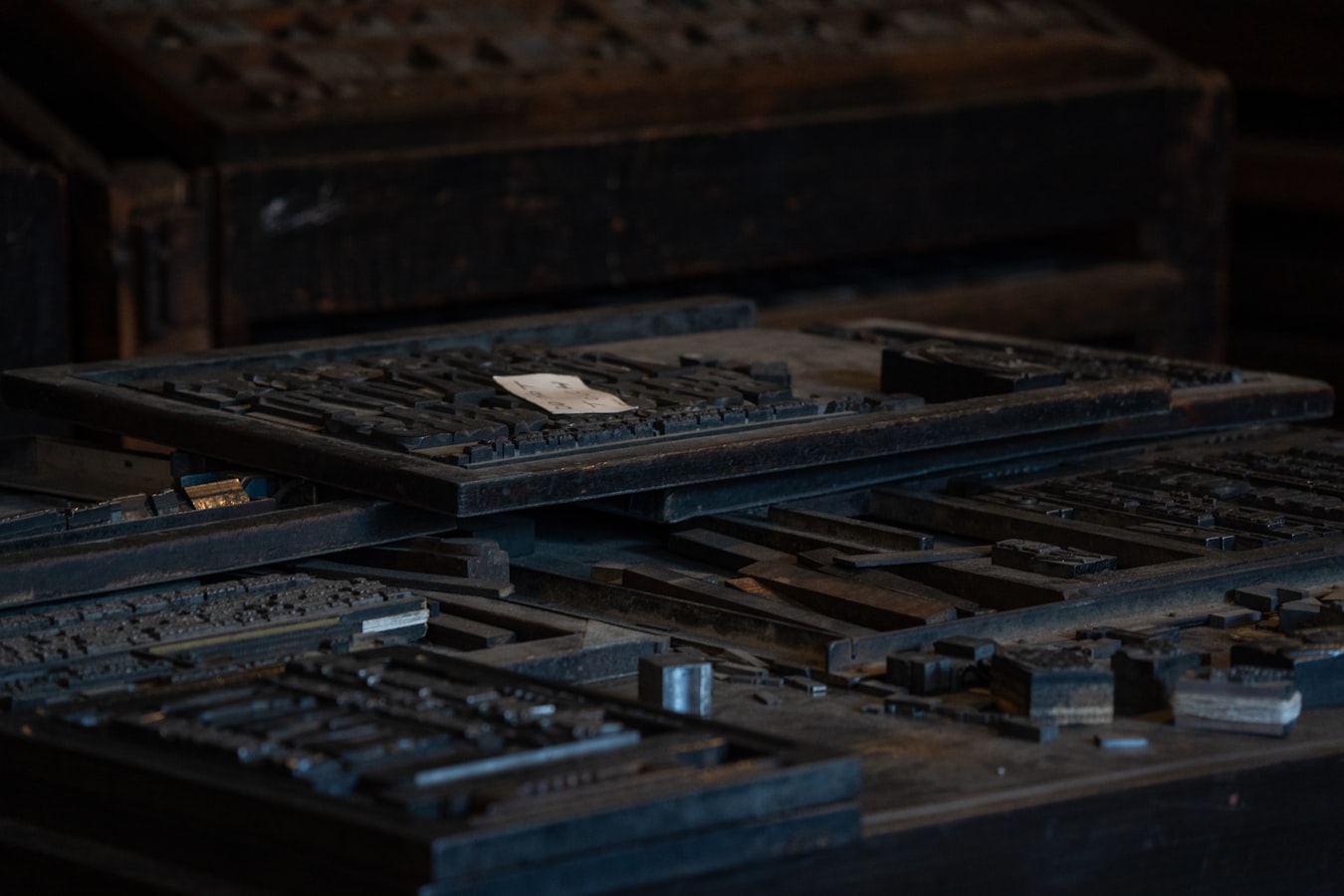
PDF Font Embedding for Print: What It Is, Why It Fails, and How to Fix It Before the Press Runs
Missing fonts are one of the quietest, most expensive problems in print production. The file looks fine on the designer's screen. It looks fine in the email preview. Then it hits the RIP and a heading reflows in Courier, or a logotype substitutes to a system sans-serif, and the job has to reprint. This reference covers what PDF font embedding for print actually is, why partial embedding is just as dangerous as no embedding, how to audit a file before it ships, and how to prevent the problem at the template stage so it never reaches the press.
What PDF Font Embedding Actually Means (and What 'Subset' vs. 'Full' Gets You)
When a PDF is created, the software can either reference a font by name and trust the output device to supply it, or it can package the font data inside the PDF itself. Embedding packages the font data. A PDF with fully embedded fonts carries everything the RIP needs to render text accurately, regardless of what fonts are installed on the press workstation.
There are two embedding modes.
Subset embedding includes only the glyphs (individual characters) actually used in the document. If a headline uses only the letters A, C, E, I, L, N, O, P, R, S, and T, only those glyph outlines are stored. Subset embedding produces smaller file sizes, which is why most export presets default to it. For static, finished files it works fine.
Full embedding includes the entire font file, every glyph in the character set. File sizes are larger, but the font can be used to render any character the typeface supports.
For press-ready files, either mode is acceptable as long as the document is truly finished and static. The danger appears when someone tries to edit text inside a subset-embedded PDF: the characters they type may not be in the subset, so the RIP (or the editing application) falls back to a substitute font. That substitution can reflow text, change tracking, or break a layout that was carefully set in the original design application.
PDF/X-1a, the standard most offset and sheetfed press workflows require, mandates that all fonts be embedded. No exceptions. If you are sending files to a shop running a PDF/X-1a preflight profile, an unembedded or only-referenced font will fail the check immediately. For a deeper look at what PDF/X-1a requires beyond font embedding, see PDF/X-1a Compliant Web-to-Print: Keep It Press-Ready.
Why Missing or Partially Embedded Fonts Cause Reprints
A RIP (raster image processor) converts the PDF into the bitmap data the press imaging system needs. To do that accurately, it must render every character at the correct size, weight, and spacing. If the font data is not in the PDF, the RIP has three bad options: substitute a system font, embed a placeholder, or fail with an error.
Font substitution is the silent killer. The job does not error. It runs. The operator may not catch the Courier substitution until the sheets come off the press. At that point the reprint cost is real: paper, ink, machine time, and the customer's deadline.
Partial embedding causes a subtler version of the same problem. A subset-embedded file that has been touched after export, even lightly, may have had characters added outside the original subset. The glyph data for those characters is not in the file. The RIP has to improvise.
Font problems also interact with other preflight failures. A file with unembedded fonts often has other issues: wrong color space, missing bleed, incorrect resolution. For a broader list of what to check, the Print Ready File Preflight: 7 Errors That Cause Reprints checklist covers them systematically.
How to Check Font Embedding Before You Send the File
Checking font embedding takes about two minutes in the tools you already have.
In Adobe Acrobat (Pro or Reader): Open the PDF, go to File > Properties > Fonts tab. Acrobat lists every font the document references and shows its embedding status. You want to see "Embedded Subset" or "Embedded" next to every entry. Any font listed without one of those labels is not embedded and will cause problems at the RIP.
In Adobe Acrobat Pro with Preflight: Open the Preflight panel (Tools > Print Production > Preflight). Run the "PDF/X-1a" profile or the "Fonts not embedded" check. The preflight report will flag each unembedded font and its page location.
In a dedicated preflight tool: Applications like Enfocus PitStop, Callas pdfToolbox, and similar prepress tools offer font embedding reports as part of full preflight profiles. These are standard in most commercial print shops.
What to do when you find an unembedded font: Go back to the source application (InDesign, Illustrator, Affinity Publisher) and re-export with embedding turned on. Do not try to fix the font inside the PDF using a PDF editor. Re-exporting from the source is the only reliable method.
If you are checking files that customers have submitted, this check should be part of your intake preflight, not something you discover at press time.
Common Culprits: The Workflows That Produce Unembedded Fonts
Understanding where unembedded fonts come from helps you prevent them upstream.
Microsoft Office exports. Word, Publisher, and PowerPoint can produce PDFs, but font embedding behavior depends on the application version, the operating system, and the specific font license. Many system fonts in Windows are licensed for print but not for embedding in PDFs distributed to third parties. Office applications sometimes silently omit embedding when the font license restricts it. Files saved as PDF from Office and sent directly to press are a frequent source of font failures.
Editing a flattened PDF. If someone opens a press-ready PDF in Acrobat and makes a text edit, Acrobat writes new characters using whatever font is currently installed on that machine. If the font is not available or is not re-embedded after the edit, the resulting PDF may reference a font by name without including its data.
Third-party online PDF tools. Compression services, merge tools, and online editors sometimes strip or alter font embedding as a side effect of their processing. A file that passed preflight before being run through one of these tools may fail afterward.
Fonts not installed at export time. If the designer's machine is missing a font that was used in the original document, the application may substitute and export the substitute without flagging it clearly.
Customer-modified files. When customers edit a PDF template using a general-purpose PDF editor, they can introduce exactly these problems. This is where the template stage matters most.
Fixing the Problem at the Template Stage, Not the Press Stage
The right place to solve PDF font embedding for print is before any customer or collaborator ever touches the file. A font problem caught at export costs nothing. A font problem caught after a press run costs money and trust.
In InDesign: Use File > Export > Adobe PDF (Print) and confirm that the PDF/X-1a or PDF/X-4 preset is selected. Under the Advanced tab, set "Subset fonts below" to 0% to force full embedding of every font in the document.
In Illustrator: When exporting as PDF, check that "Embed All Fonts" is selected in the General options. Outline any ornamental or logotype fonts that are single-use and unlikely to be edited, which converts them from font data to vector paths and removes the embedding concern entirely.
Outline type that should never change. Logos, brand wordmarks, and decorative headlines are almost always better outlined before export. Outlined type is vector geometry, not a font reference, so the RIP renders it the same everywhere regardless of what fonts are installed.
Lock the design, expose only the fill fields. If customers need to personalize a file, the safest approach is to keep them away from the underlying font data entirely. When a shop publishes a template through StackFill, the finished PDF is ingested as a scene graph. Editable fields are marked; everything else, including all font rendering, is locked at the structural level. Customers fill in their name, address, or tagline through a controlled interface and download a press-ready CMYK PDF. They never open the source file in a PDF editor, so they cannot accidentally add characters outside the embedded subset or break the font reference.
For more on keeping designs intact while still giving customers what they need to fill in, How to Let Customers Edit PDF Without Changing the Design goes through the approach in detail.
Font Embedding and Customer-Editable Files: Keeping It Press-Safe
The tension between "customers need to personalize this" and "the file must be press-safe" is where most font problems in web-to-print workflows originate. Shops hand the customer a PDF, the customer opens it in Preview or Acrobat Reader, types their information, and saves. What the shop gets back is unpredictable.
The practical solution is to never let the customer touch the underlying PDF at all. A properly built fill interface exposes only the data fields and keeps the design layer, including all embedded fonts, completely off-limits. Getting PDF font embedding for print right at the template stage means you stop troubleshooting it at the press stage.
This also matters for variable data printing from a finished PDF, where text fields are populated programmatically across dozens or hundreds of records. If the font data is not embedded or is subset-embedded with an incomplete glyph set, a single unusual character in the data set can break the entire run.
Bleed and trim are the other common companion to font failures in submitted files. If you are building a preflight checklist, PDF Bleed and Trim Setup: Print Shop Reference covers those checks alongside the font audit.
Font embedding is not a complicated concept. Embed everything, outline what will never change, and build templates so customers never get near the font layer. Catch the problem in Acrobat's font properties tab before the file leaves your desk, not after the press run. That two-minute check is cheaper than any reprint.