2026-09-04 · StackFill
CMYK vs RGB for Print: What It Costs Your Shop
RGB files break on press. Learn why CMYK vs RGB for print is a physical requirement, where conversions fail, and what a press-ready PDF actually contains.
CMYK vs RGB for Print: What It Costs Your Shop
Color mode is not a visual preference. It is a physical instruction set. When a designer submits an RGB file to a print shop, they hand the pressroom instructions written for a screen, and the press cannot follow them. Knowing where that gap exists, and what it costs when nobody catches it before the job runs, is the fastest way to stop paying for reprints that should never happen.
Why the Monitor Lies to You (and the Press Doesn't)
Every monitor produces color by emitting red, green, and blue light. Colors combine additively: more light means a brighter result. Pure red plus green plus blue produces white.
A printing press does the opposite. Ink absorbs light. The more ink you add, the darker the result. White is the bare paper. Black is what happens when you pile on enough ink to absorb almost everything.
A monitor can display saturated electric blues, neon greens, and luminous oranges that no combination of physical inks can reproduce. When you design in RGB and export without conversion, you create an expectation the press cannot meet.
What CMYK Actually Means on Press
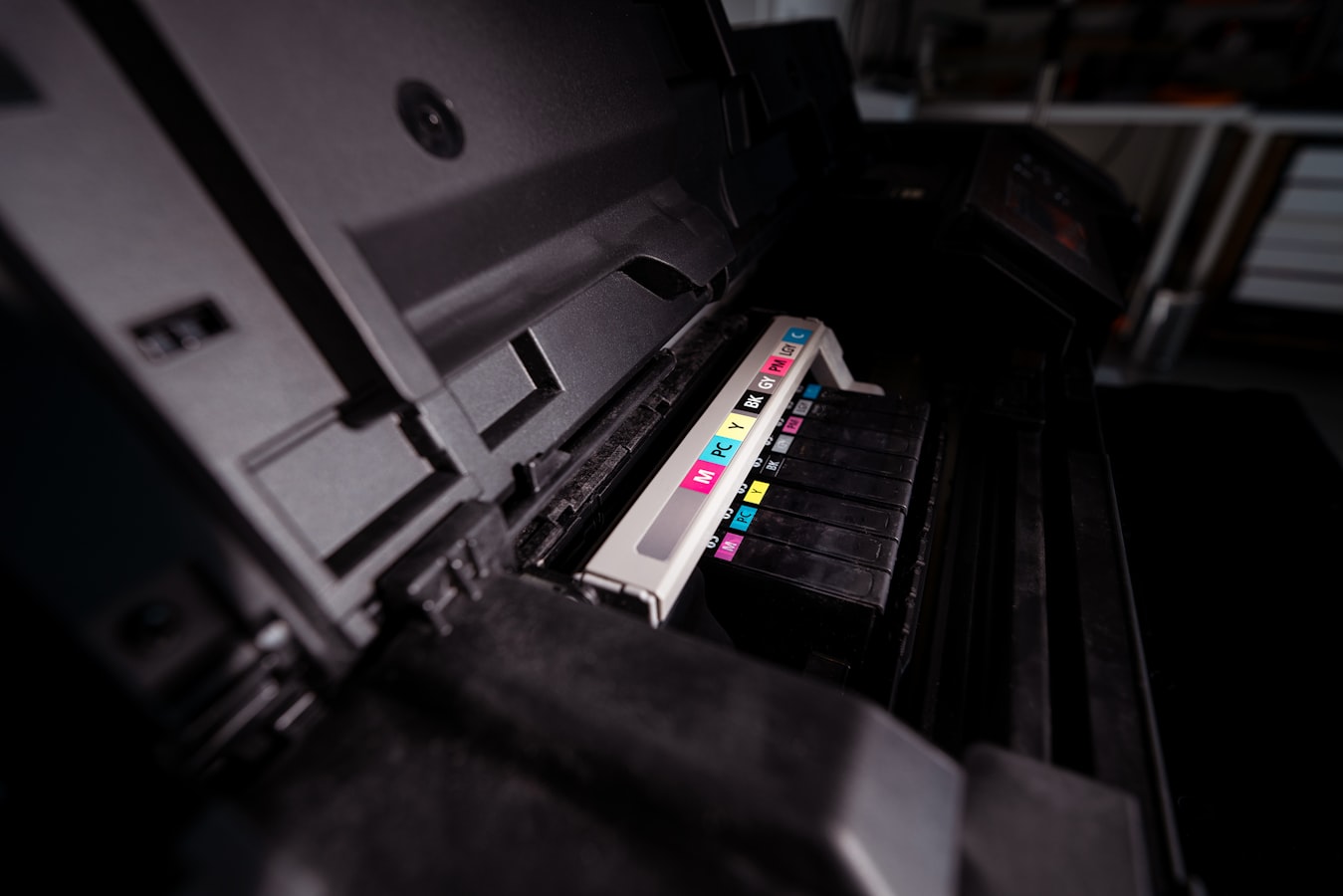
CMYK stands for Cyan, Magenta, Yellow, and Key (Black). On a sheet-fed offset press, each color runs through a separate printing unit in sequence. On a digital press, the same four toner or ink channels drive the output. Every color in the final piece is built from measurable ink percentages that the RIP converts into dot patterns.
Total ink coverage matters too. Most offset presses run a total ink limit between 280% and 340%. Go over that and you risk slow drying, ink trapping problems, and sheets blocking in the delivery pile. RGB files carry no ink data at all, so that check cannot happen until after conversion, which may be too late. For more on how ink interacts with knockout and overprint settings, see Overprint vs Knockout CMYK: Print Shop Field Guide.
Where RGB Files Break Down in Prepress
Preflight is where RGB problems surface. Any competent preflight profile flags non-CMYK color spaces as an error. Common failure points:
- Embedded images. A photo placed in InDesign stays RGB unless the designer converts it before placing or exports with a conversion profile applied.
- Spot colors called in RGB. A designer defines a swatch as R:255 G:0 B:0 and names it "Red." The file has no Pantone reference, no CMYK equivalent, and no ink instruction.
- Mixed color spaces in a single PDF. Some objects are CMYK, some RGB, some LAB. The RIP makes conversion decisions for each one inconsistently.
The Print Ready File Preflight: 7 Errors That Cause Reprints article covers the full list of preflight failures worth catching before a job moves to press.
Why Auto-Converting at the RIP Is Risky
Many RIPs auto-convert RGB to CMYK on the fly. The problem is that automatic conversion is only as good as the conversion profile, and generic profiles are built for average conditions, not your specific paper stock, ink set, or press calibration.
When the RIP converts an RGB photo using a generic sRGB-to-CMYK profile and the result comes out flat or muddy on press, the shop reprints. The designer blames the shop. The shop absorbs the cost. Nobody wins.
The only reliable path is CMYK files, properly profiled, signed off on a calibrated soft proof or hard proof before the job runs. For a checklist on evaluating how well a proofing setup holds color through to press, see Web to Print CMYK Color Accuracy: A Shop-by-Shop Audit Checklist.
What to Hand Your Print Shop Instead
A press-ready PDF means, at minimum:
- All color in CMYK or named spot color (Pantone or equivalent)
- Images at 300 dpi at final print size, converted to CMYK before placement
- Total ink coverage within the shop's stated limit
- Bleed extended to at least 1/8 inch (3mm) on all bleed edges
- Fonts embedded or outlined, see PDF Font Embedding for Print: Fix It Before Press for what to check
- Crop and registration marks placed outside the bleed boundary
PDF/X-1a enforces most of this by specification. It prohibits RGB objects and requires embedded color profiles, which is why shops that accept PDF/X-1a have far fewer preflight failures.
When Color Mode Matters Even More: Personalized Files
The CMYK vs RGB for print problem gets worse when personalization enters the picture. A customer filling in their name and phone number on a postcard template should not be able to introduce an RGB image that breaks the file. That is a workflow problem, not just a design problem.
StackFill is built for this situation. It ingests a finished, press-ready CMYK PDF, marks which fields customers may edit, locks everything else, and lets customers personalize against a live proof. The output is a byte-identical, press-ready CMYK PDF. The color mode the shop signed off on going in is the color mode that comes back out. No last-second RGB conversion at the RIP, because the file was never converted at all.
For shops with franchise or multi-location customers submitting content into locked brand templates, color mode discipline at the template level is the only way to keep every location's files press-ready. Brand Template Lockdown for Franchise Locations covers how to set that up so a location manager filling in an address cannot accidentally corrupt the file's color space.
Color mode is infrastructure. Get it right in the original file, enforce it at the template level, and preflight failures become rare instead of routine.